Offer Submission Procedure
Open the tender and start preparing the offer
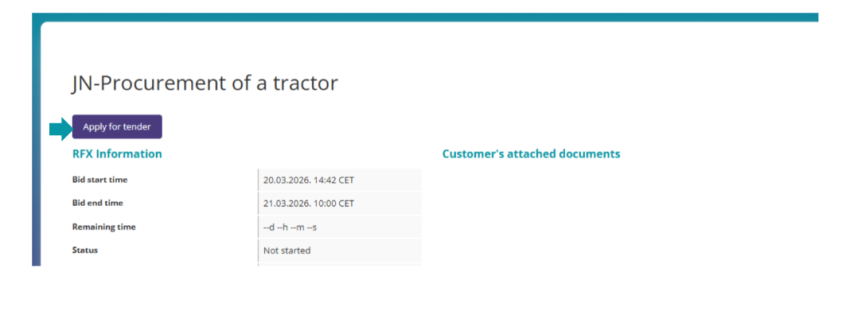
In the selected tender, click “Apply for tender”. If several users are registered for the same business entity, first click “Take Over Tender”, then “Prepare Offer”.
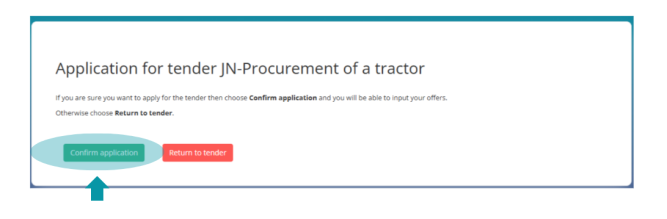
Click Confirm application
Then Post a Bid.
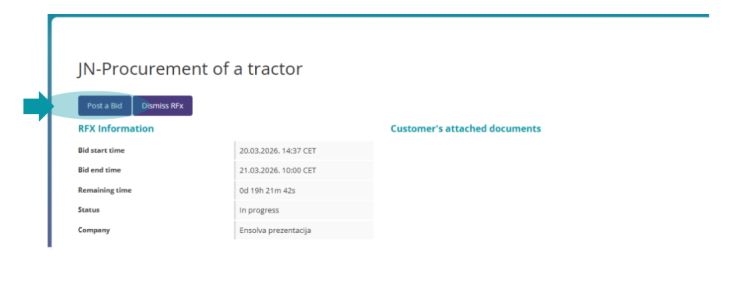
Open the offer entry screen
After starting the offer preparation, the tender overview is displayed. Depending on the screen, select the action for submitting/preparing the offer to access the sections that must be completed.
The offer overview may contain three sections:
• Entering an offer by procurement items
• Entering additional information and adding attachments for the customer
• Completing the mandatory questionnaire
Important: complete all sections that the customer has marked as mandatory.
3 Enter prices for procurement items
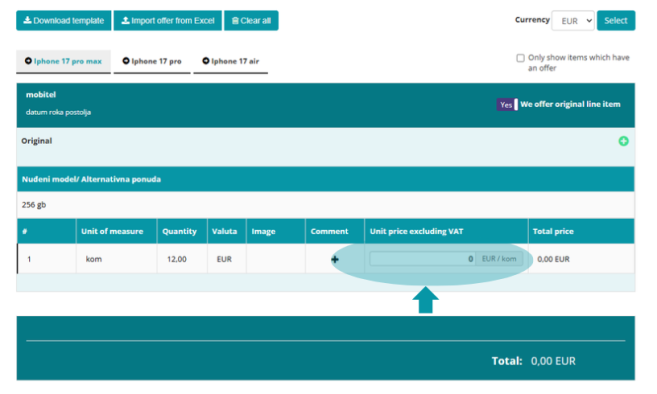
Open the “Entering an offer by procurement items” section. Prices can be entered manually or by using the Excel template.
Option A – Manual Entry
Enter the requested price in the “Amount” field next to the relevant item or line item.
Option B – Entry Using an Excel Template
1. Download the Excel template from Ensolva.
2. Open the file and enter the prices in the designated cells.
3. Save the Excel file without changing the template structure.
4. In Ensolva, select “Upload Offer from Excel”.
5. Check that the amounts have been transferred correctly to the offer fields.
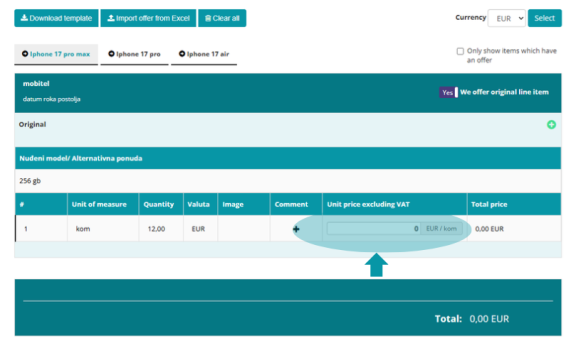

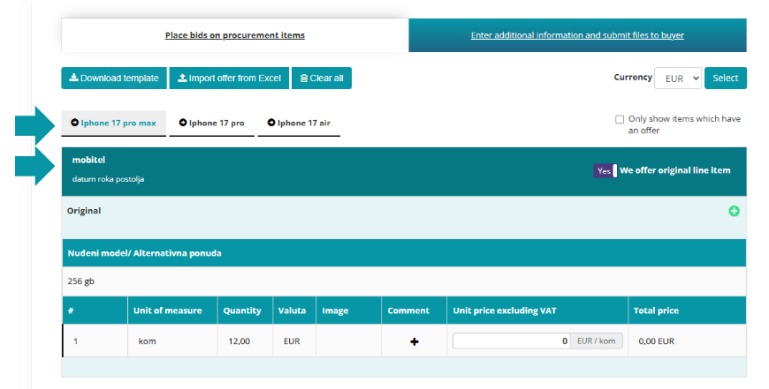
NOTE: Procurement items may be organized into groups, and each group may contain several individual line items. Before entering a price, check whether the price should be entered at group level or for a specific line item.
Check the procurement item description
Item details may be provided in the tender invitation, customer documents, item description, image or other attached content. Review all available information before determining the price.
Save a draft or submit the offer.
If you have not finished entering the offer, click “Save Draft”. The draft is saved but not sent to the customer. When the offer is complete, click “Submit Offer”.
Save Draft = the offer remains with the supplier and can be edited later.
Submit Offer = the offer is sent to the customer.

You may resubmit the offer while the tender is open. The latest submitted version is the version relevant to the customer. When submitting a new version, if the customer requires documentation or other mandatory attachments, check the requirements again and attach everything required.
Check the Offer Report
After saving a draft or submitting the offer, you can open the “Offer Report”. Check the offer data and status in the report.
EXAMPLE: In the example shown, there are two groups of procurement items: IT equipment and Accessories. Laptop group has two items, and the Accessories group has three items.
Each procurement item can be specified in the Invitation to Tender by a description, attached documentation (Buyer's attached documents), a description of the item itself along with the item's name, a picture, or some other elements that describe the procurement item in greater detail.

After entering the offer and clicking the Save draft button, the offer is saved but not sent to the customer; however, it can be forwarded later.
The offer is sent to customer by clicking the Send offer button.1Offer is possible to send an unlimited number of times for the duration of the RFx, and the buyer sees the last sent offer..
The supplier has the option to review the Offer Report after saving the offer draft or submitting the offer to the client.
By selecting the option Return to the bid report, you have two choices: create the offer or report on the offer.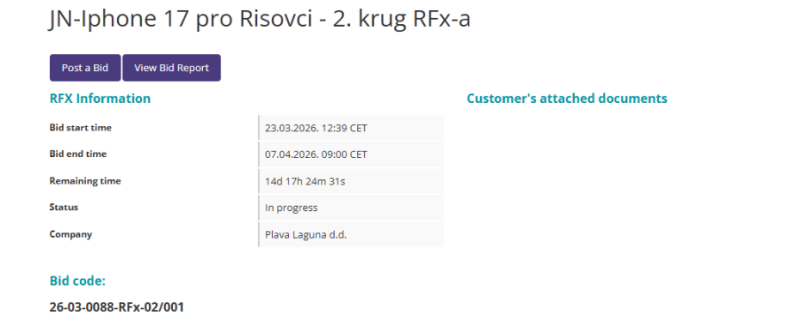
When you choose the "View Bid report" option, a screen with details about the saved or sent offer opens (the status of the offer is visible in the report itself).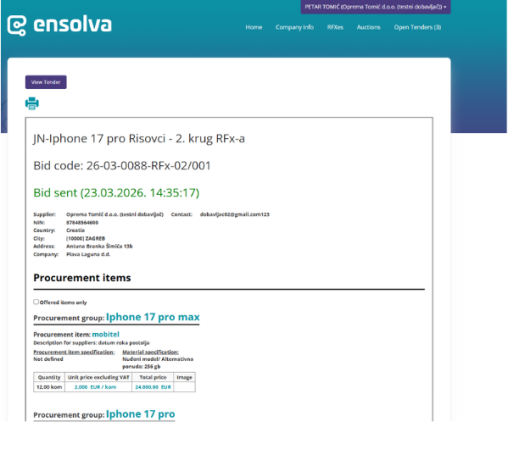
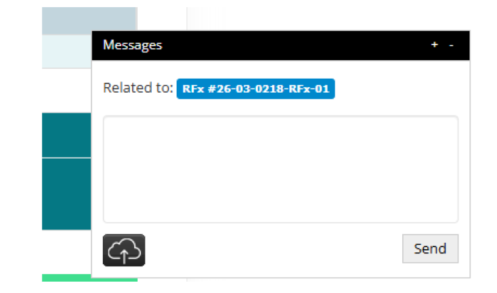
If you wish to communicate with buyers regarding the ongoing tender you are working on, there is a Messages field in the bottom-right corner of the interface. Click on the “+” to expand the window and enter a new message.
Quick Check Before Submission
• Have prices been entered for all required items?
• Have all mandatory sections been completed?
• Have all documents requested by the customer been attached?
• If there is a customer cost sheet, has it been uploaded as an attachment?
• If Ensolva’s Excel template was used, were the amounts uploaded correctly?
• Has the final version of the offer been submitted rather than only saved as a draft?
• Does the Offer Report show the expected status?
Visit the following link to watch video instructions for entering an offer: